
When working on Windows Servers, I’ve been in the habit of using PowerShell or PowerShell ISE instead of the default Command Prompt, even when performing functions that don’t particularly require PowerShell.
A good example of this is performing netstat from PowerShell. Traditionally, a popular method of running netstat from the Command Prompt is to pipe the results into find and searching for strings. I have always found this solution to be inadequate since find is little more than a poor man’s grep. If we need a more complex search using find typically our only recourse is to re-run the command with a different search string. Even though netstat isn’t implemented with PowerShell’s object oriented behavior, being able to perform regex searches using Select-String gives us all the motivation we need to use the tool from PowerShell.
Let’s take a real world example using netstat for troubleshooting. Suppose we are trying to start a web server like IIS or Apache and we’re having trouble binding to port 80 and 443. In Linux we could check which process is listening on those ports by running netstat -nlp | egrep ":(80|443)". Unfortunately, netstat in Windows doesn’t support the -p option, but we can get pretty close with netstat -ano. But how to implement the regex search? With Select-String of course:
PS> netstat -ano | Select-String ":(80|443)" | Select-String "LISTEN"

  TCP    0.0.0.0:80             0.0.0.0:0              LISTENING       24580
  TCP    0.0.0.0:443            0.0.0.0:0              LISTENING       24580
We don’t have the process name, but in the last column we have the PID (Process ID) and that gives us something to work with. We could check the PID with the Task Manager by adding the PID column, or using Windows Sysinternals Process Explorer. From the Command Prompt the traditional way would be to run tasklist | find /i "24580", and of course there’s nothing wrong with this, except that PowerShell has a powerful method of giving us exactly what we want:
PS> Get-Process -id 24580

Handles  NPM(K)    PM(K)      WS(K) VM(M)   CPU(s)     Id ProcessName
-------  ------    -----      ----- -----   ------     -- -----------
    809      69    90344     105016   336     5.68  24580 Skype
So with a simple check using Get-Process we’re able to see that the offending process is–Skype??
Yes, as it turns out Skype’s default behavior is to bind ports 80 and 443 as a communications backdoor in case it can’t communicate using the normal protocol.
Now I know what you are thinking, Skype shouldn’t be running on a production web server. We could just write a PowerShell script to determine the users running Skype, kill the application, and disable the user’s account, which I leave as an exercise for the reader. In this case we’re not working with a production web server, and Skype does have a legitimate business case in some environments.
As it turns out we can disable this behavior from Skype by going to “Tools” -> “Options”, selecting “Advanced” -> “Connection”, and unchecking “Use port 80 and 443 as alternatives for incoming connections” like so:
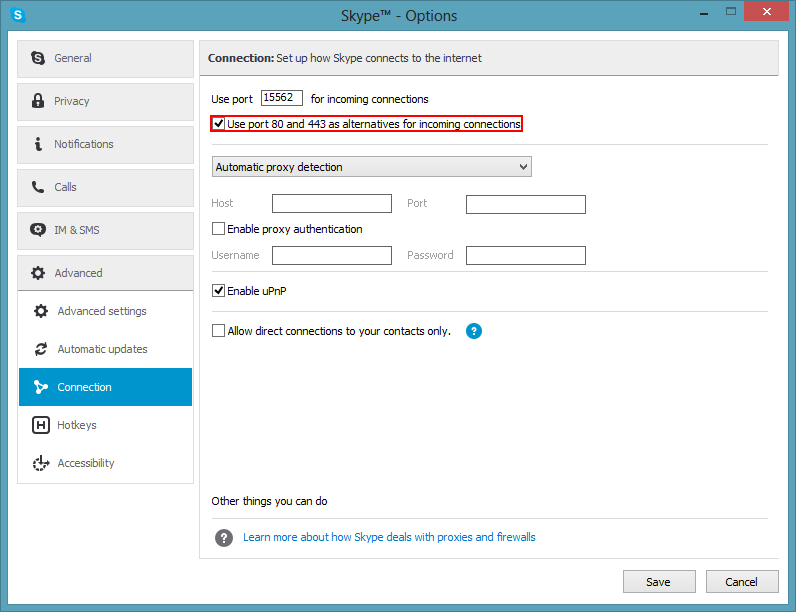
Skype Options: Use port 80 and 443 as alternatives for incoming connections
Unchecking this and restarting Skype, we check again and see that the listening ports have returned to normal:
PS> netstat -ano | Select-String ":(80|443)" | Select-String "LISTEN"

PS>
This is an admittedly simple example, but imagine trying to troubleshoot this without netstat, trying haphazardly to shut down applications and services, rebooting multiple times, trying to isolate the application capturing the port. Very few individuals would suspect that something as innocuous as Skype would be the offending program.
The other take-away is that performing regex search from PowerShell allows for more complex exploration of the listening ports on the system, which becomes more powerful when you are looking into a large number of ports at one time, such as e-mail related ports or database ports.
For the PowerShell purists, in the TechNet Script Center there is a handy Get-NetworkStatistics script which performs many of the same functions, and others have their own implementations of Netstat for PowerShell that are worth looking into. However, when you are working on a production server that you don’t own, the above methods are your best bet.