 If you have managed UNIX or Linux systems in a mixed shop with Microsoft Windows, no doubt at some point you’ve used PuTTY, the free SSH client.
There are a number of variants of PuTTY, each of which are worth their own discussion. Respins like KiTTY, SuperPutty, PuTTY Portable, and PuTTY Command Sender leap immediately to mind, however for day to day use I still come back to the classic simplicity of Simon Tatham’s PuTTY.
PuTTY is a great SSH client that is packed with features, but while it has useable default settings that most people never modify, there are a number of important fixes for common problems and productivity improvements that are worth investing in if you will be using the tool regularly.
Changing the Default Settings
From years of observation I have noticed that few people realize that PuTTY’s Default Settings can be modified directly. Select the “Default Settings” Saved Session and click “Load” to reload the current settings.
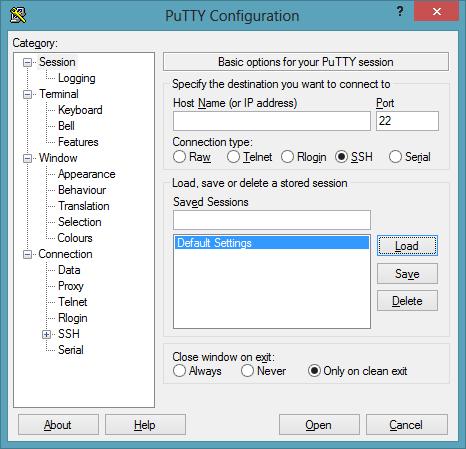
PuTTY Configuration: Loading Default Settings
Once we’ve modified the defaults to what we want, we can return to the Session screen to select the “Default Settings” Saved Session and clicking “Save”. Now every PuTTY session that is launched will have the same basic configuration, every time!
Fixing a Broken Backspace or Delete Key
In my experience, I rarely have trouble with my Backspace or Delete key in PuTTY, however depending on the environment you are connecting to it may produce… unexpected results. Fortunately the backspace behavior can be modified under the Terminal -> Keyboard settings:
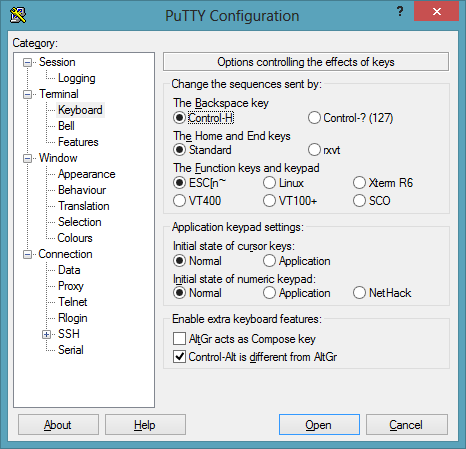
PuTTY: Changing Backspace Behavior
In the example above, the Backspace key has been remapped to Control-H to better suit the behavior of the target environment. Of course, the traditional stty erase ^H also works, but modifying the setting here allows us to configure the Backspace behavior for the saved session permanently.
Changing Default Window Size
Have you found that the default terminal size of 80 columns by 24 rows to be confining? This was the traditional size of a VT100 terminal, but today on a Windows desktop there is not much reason to restrict the window to this size. A single command might scroll several pages of text with only 24 rows available, so I set PuTTY to default to a maximum number of rows for my display:
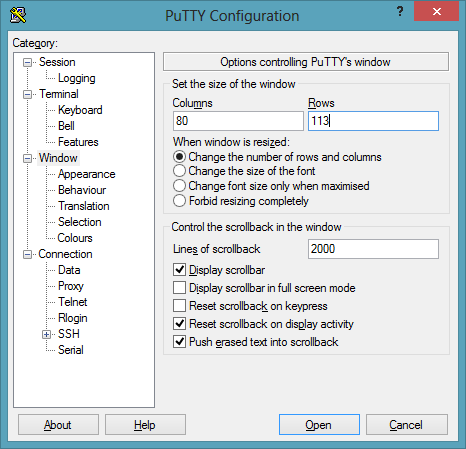
PuTTY: Changing Window Size to 113 Rows
Changing Appearance and Display Font
The choice of terminal display font is not merely a matter of aesthetic preference: It is a key element of productivity in how easily you can read the terminal output, and for how long in a single stretch. For this reason, I strongly recommend changing the default font from Courier New 10-point to something easier on your eyes:
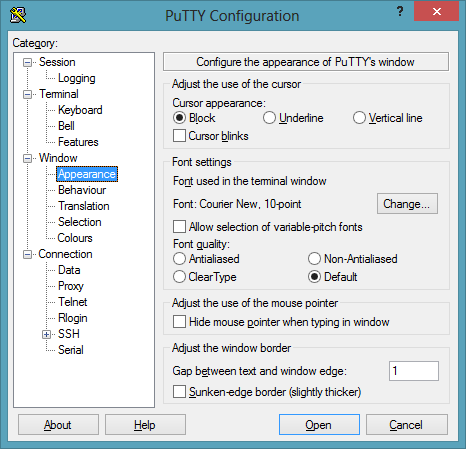
PuTTY: Windows Appearance Settings
Terminal fonts are something of a holy war among technical users: Everyone has an opinion about what makes for the best font, while others are baffled why this is important at all. The bottom line is that if you are staring at a screen packed with text all day long, you need to find the right balance between useability and comfort for how you work, otherwise you may find yourself unable to focus at the end of the day, or exhausted in the afternoon trying to make your tired eyes see the text on the screen clearly. The most important criteria is being able to easily distinguish similar characters without struggle, such as zero “o” and “O”, one “l” and “L”, “i” and “j”, and the different types of single quotes, back-ticks, and double-quotes. Sometimes this means choosing a font with serifs, while at other times sans-serif is more appropriate. Whichever font you use, choose wisely.
I prefer the ProggyTiny font for its condensed size and readability. However, I also find that Lucida Console 9 point is a great choice:

PuTTY: Setting a Readable Font – Lucida Console
As a general rule, I prefer Non-Antialiased fonts, simply because it is my opinion that aliasing by design adds blurriness to fonts. While I prefer crisp pixel perfect fonts, other people may find the “jaggies” distracting. Set this as you like, or when in doubt leave anti-aliasing set to the system default.
Adjusting Colors
In my experience the classic gray text on a black background terminal is a difficult color combination to read because the color contrast is simply too low. After experimenting with several color combinations, I’ve found that a midnight blue background with bright white text has the right contrast and is much easier on the eyes. This can be set from the Window -> Colors dialog:
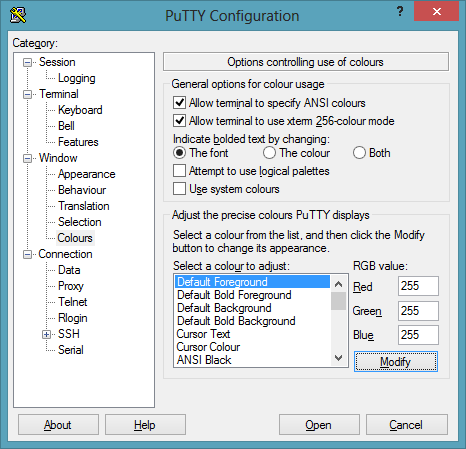
PuTTY: Modifying the Color Scheme for Visibility
The settings I prefer and recommend are the following:
- Default Foreground: Red 255, Green 255, Blue 255 (Solid White)
- Default Bold Foreground: Red 255, Green 255, Blue 128 (Bright Yellow)
- Default Background: Red 0, Green 0, Blue 64 (Midnight Blue)
Now the default colors will be a midnight blue theme. Better yet, these colors are configured in an application independent manner so they will work consistently regardless of color changes by ncurses applications.
Selections Options, Or Making Copy and Paste Work
The default copy and paste behavior of PuTTY seems to be confusing to everyone. UNIX users are familiar with the left click selection, but the right click to paste rather than middle click to paste is a little odd. Windows users, however, are particularly bewildered by right-click behavior that seems inherently destructive when all they wanted was a context menu! Fortunately, PuTTY can be easily re-configured for either world:
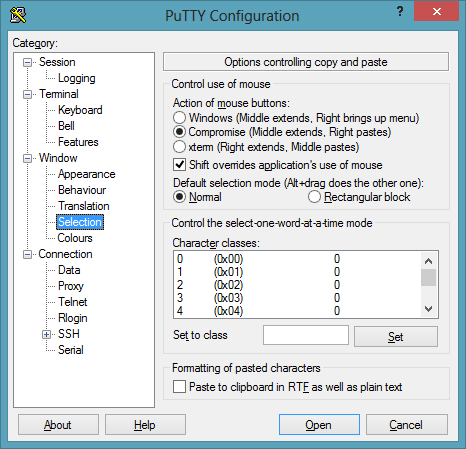
PuTTY: Modifying the Text Selection Behavior
A little known feature of PuTTY that is handy from time to time is the ability to select text either on a word and line oriented basis (the default–and in my opinion preferred–behavior) or as a rectangular block (reminiscent of the traditional Windows Command Prompt). I recommend leaving the default behavior as “Normal”, because all that is necessary to select as a rectangular block is to hold down the “Alt” key while dragging the mouse:
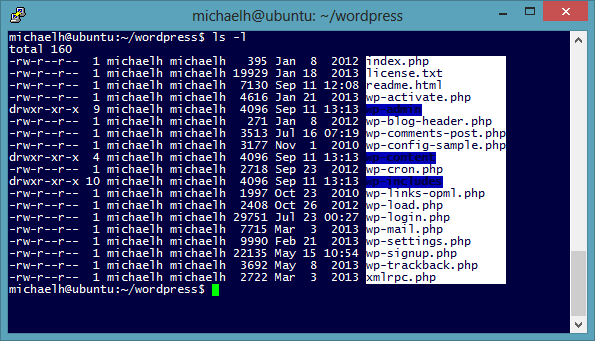
PuTTY: Switching to Block Text Selection by using Alt+Mouse Drag
In this example the Rectangle Block selection has been used to copy the last column of ls -l output, allowed easy access to a list of file names without additional file metadata.
Fix Box Drawing Characters in PuTTY
One of the perennial complaints when using PuTTY is that the line drawing characters appear as characters rather than as nice clean lines. In fact, the problem is so pervasive that even many professional System Administrators never try to fix it and just assume that this is a bug going from Windows to Linux that we all just have to live with. If you have had to live with screens that look like this for far too long, keep reading:
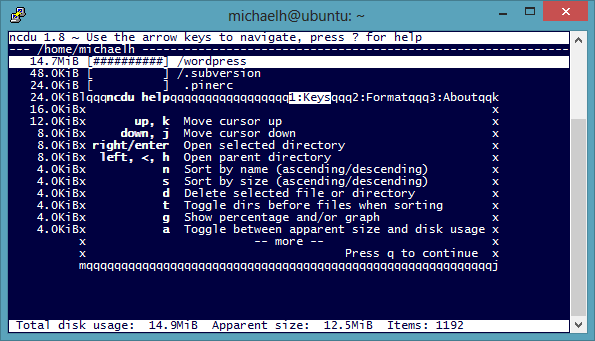
PuTTY: Line Drawing Failure
The first thing to check in PuTTY is to verify that the Remote Character Set is UTF-8 in the PuTTY configuration under Window -> Translation screen, and also make sure PuTTY is set to “Use Unicode line drawing code points.”
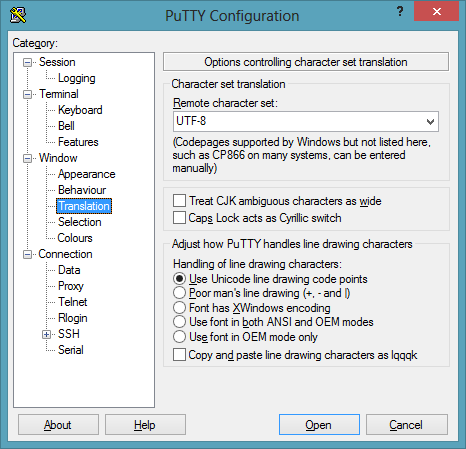
PuTTY: Setting Character set to UTF-8 and Using Unicode Line Drawing
With the character set configured correctly, we need to set an obscure option in ncurses–which is discussed further in the ncurses man page for the curious–to use the VT100 “Alternate Character Set” rather than Unicode box-drawing characters when using UTF-8 encoding. Setting the NCURSES_NO_UTF8_ACS environment variable to “1” will tell ncurses to ignore this and use Unicode characters for line drawing. In bash, the syntax is:
export NCURSES_NO_UTF8_ACS=1
Now when we re-try the application line drawing performs normally:
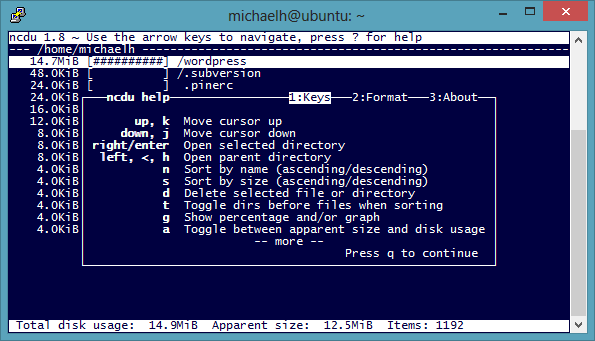
PuTTY: Line Drawing Awesome
If proper line drawing is a regular problem, you can add the environment variable to the .bash_profile so it will be set each time on login.
Configuring X11 forwarding
Among new users of PuTTY, there is often a misconception that since PuTTY does not include an X server, it cannot be used with X11 applications. The reality is that PuTTY is already able to forward X11 connections to a local running X server with minimal configuration. In fact, all that is needed is to make a couple of simple changes in the PuTTY Configuration under Connection -> SSH -> X11 as in the following example:
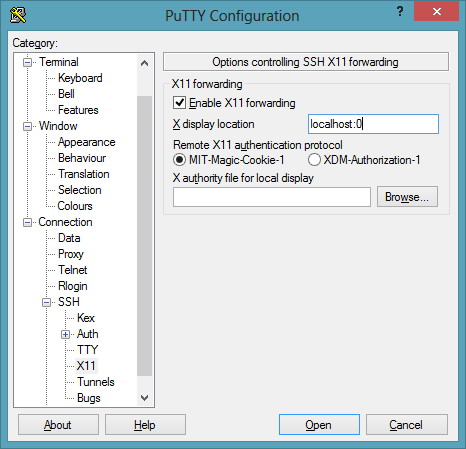
PuTTY: Configuring X11 Forwarding to use local X server
Here we’ve enabled X11 forwarded by checking the “Enable X11 forwarding” check box, and configured the X display location to localhost:0 which for a single-user desktop PC is the typically usage. All we need now is to launch an Xserver such as Xming, for instance by double-clicking the Xming icon:

We can verify that Xming is running by verifying the Xming icon is displayed in the taskbar:

Finally, we can test that the X11 forwarding is working correctly by connecting to a host an running an X11 application. For a quick test, my favorite command is “xclock &” to display a simple and lightweight analog clock:
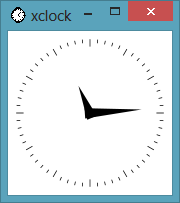
Once the clock is displayed, we know that X11 forwarding is working properly.
Conclusion
In this overview of PuTTY configurations there were many interesting and powerful options that I did not mention or go into detail explaining. There is already excellent documentation available that explains many options further, and much more can be learned by trial and error. However, I hope you have found that this overview helpful to deal with some of the common headaches that are encountered when using PuTTY, and gives you valuable insights on how you can better optimize it to suite your needs.